Create a New User
Introduction
Once you have created a group and project, you can create new users and edit user roles and permissions.
Permissions
Creating a New User requires the Site Admin role
Instruction Steps
How to Create a New User
-
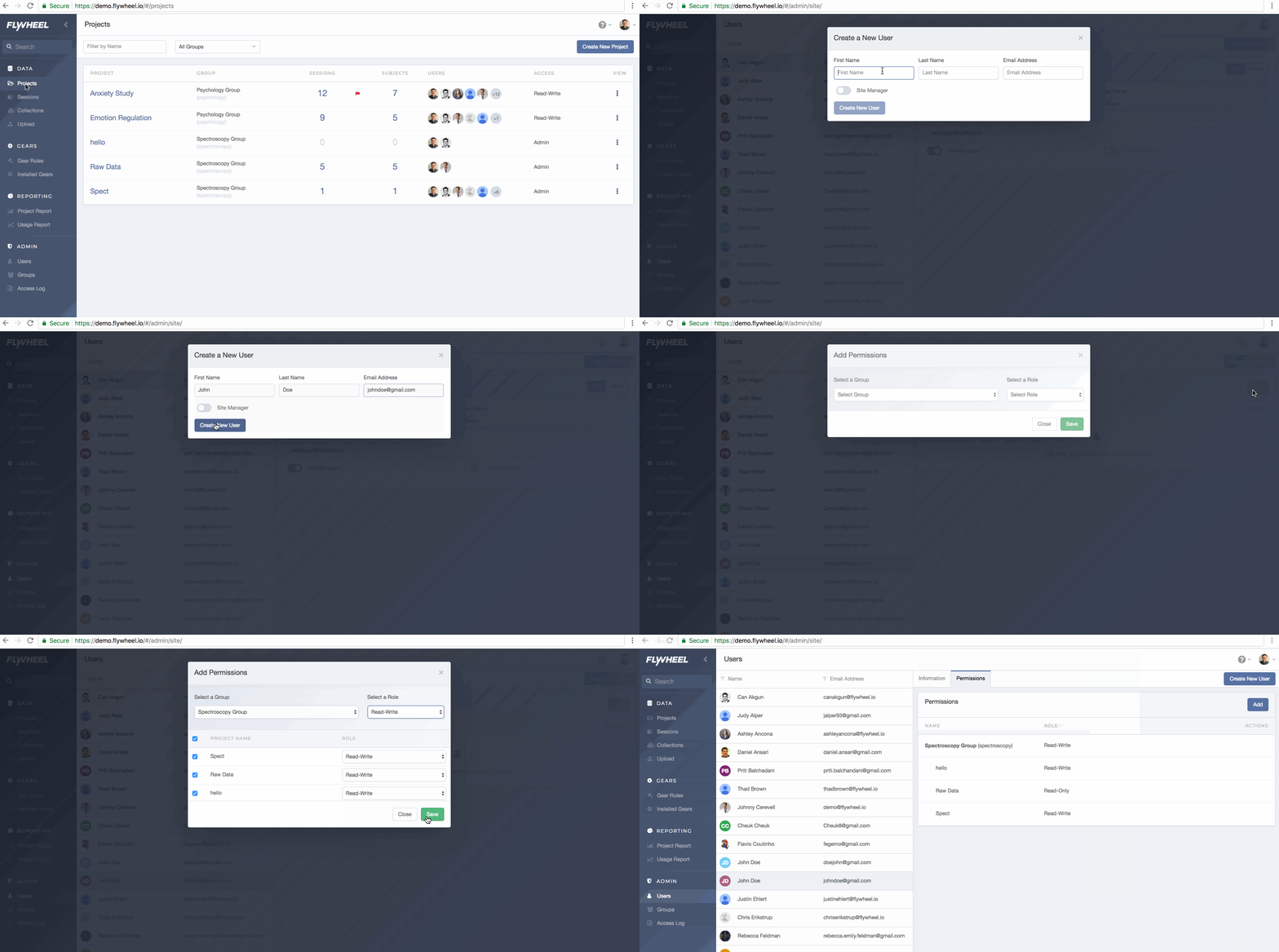
Under the Admin section in the left navigation pane, select Users.
-
Click Create New User.
- Enter the user information.
- First and last name
- Email address: The email address is case sensitive. If users will sign in via CILogon, you must enter the "ePPN" (eduPersonPrincipalName) for the email address. See our CILogon article for help determining the ePPN format for your users if you do not already know it.
- Role: Choose a site role for the user. See Understanding User Rolesbelow for more information about how Flywheel roles work.
- Security Champion (optional): Adds the Security Champion role to the user's site role. Shown on sites with storage malware scanning enabled. See Security Champion Role.
- Click Save.
- At this point the user cannot access any data because they have not been added to a group or project. Review the Understanding User Roles section below and then use the Permissions tab to add the user to groups and projects.
Understanding User Roles
At this point you have assigned the new user a site role. Next you will need to assign the user a group and project role before they can access any data. This video explains how the site, group, and project roles work together to ensure users only have access to the data they need.
Permissions Tab
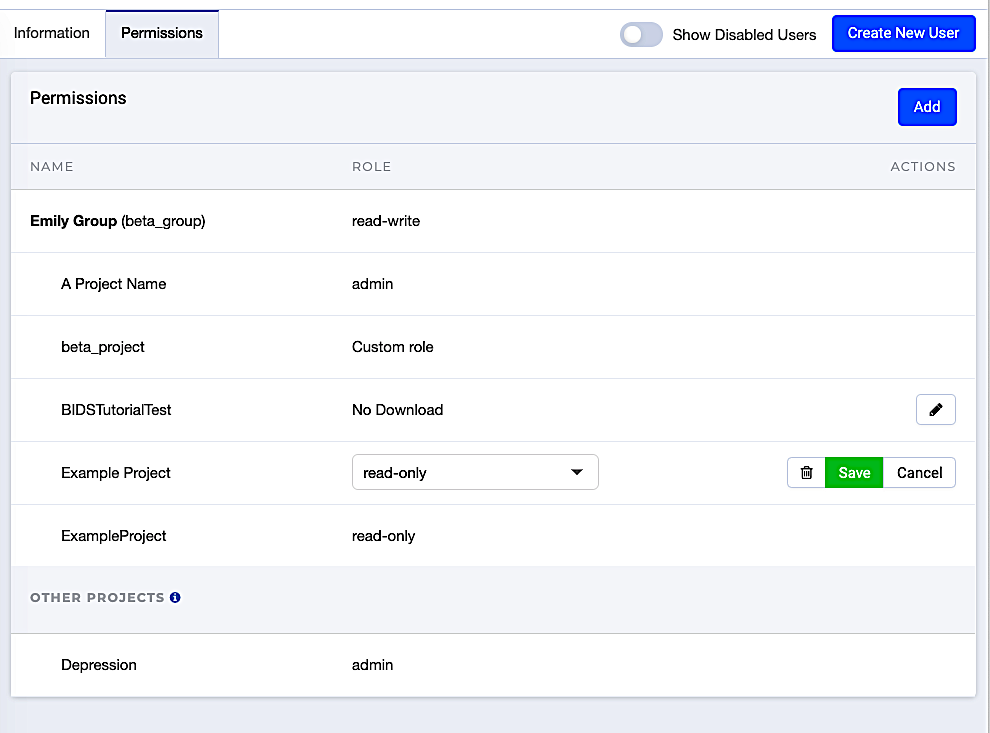
The Permissions tab shows the user's groups along with their role for the projects within that group.
The Other Projects section shows where the user has access to a project, but they are not a part of the group the project is associated with. Giving a user access to only a specific project is helpful in situations where the user should not be able to access data in other projects for that group–like when giving access to a collaborator from outside your institution.
-
Go to the Permissions tab to assign group and project roles.
Tip
To add users to a project without giving them a group role, add them via the Permissions tab in the project itself.
-
Click Add.
-
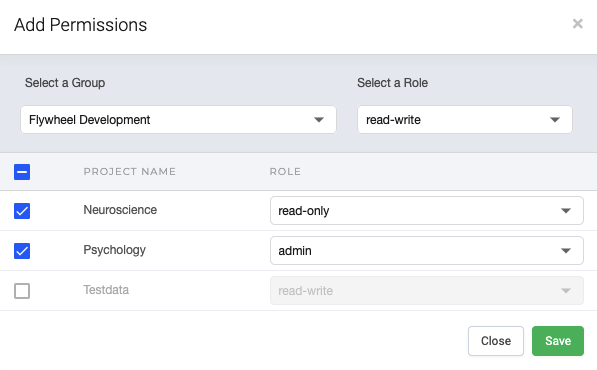
Select a group from the dropdown list, and choose a group role. The projects within that group appear.
-
Select the checkbox to add the user to the project, and assign a project role. Custom roles will appear here if you have created any. Deselect the checkbox to disable a user's access to a project.
-
Click Save.
-
Edit an existing group and project by hovering over the row and selecting the pencil

- Remove a user from a group or project by selecting the remove button

See our roles and permissions documentation for more detailed explanations of permissions included in each role.
Additional settings: Disable login
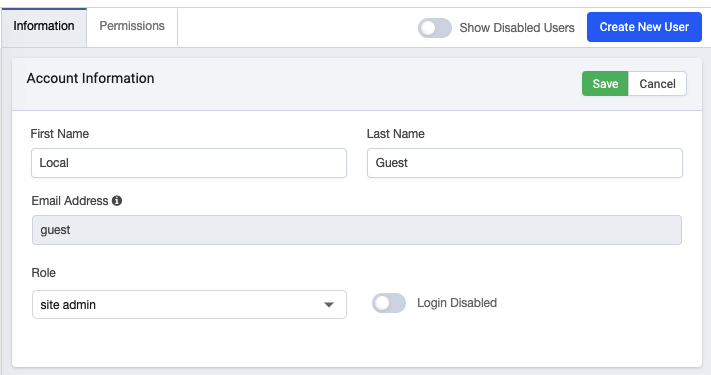
Note: To maintain provenance, users cannot be deleted. However, you can disable a user's login via the Information tab so they can no longer log in.
If you wish to no longer give a user access to Flywheel, use the  Login Disabled toggle.
Security Champion Role
On sites with storage malware scanning enabled, you can assign a user the Security Champion role. Security Champions receive email about new malware findings and record decisions on the Malware Triage page. A user holds this role in addition to their main site role, so Site Admins are not Security Champions unless they are also assigned it.
To assign the role, turn on the Security Champion toggle when you create or edit the user. Security Champions show a shield icon next to their name, and you can filter the Users list to show only Security Champions.
If no active user is a Security Champion, the Users page shows a warning, because no one is notified of findings or can record decisions.

Next Steps
Learn how to create custom roles.