Retrying an Import
Overview
If an import job fails or completes with unexpected results, you can rerun the import job using the "Rerun Job" option. This creates a new import job with the same configuration and source data location as the original import.
The "Rerun Job" feature is available for imports initiated from both external storage and local uploads (from "My Computer").
Instructions
Rerunning an Import Job
To rerun an import job:
- Open the Flywheel Core Web App.
- Navigate to the destination Project where the original import was run.
-
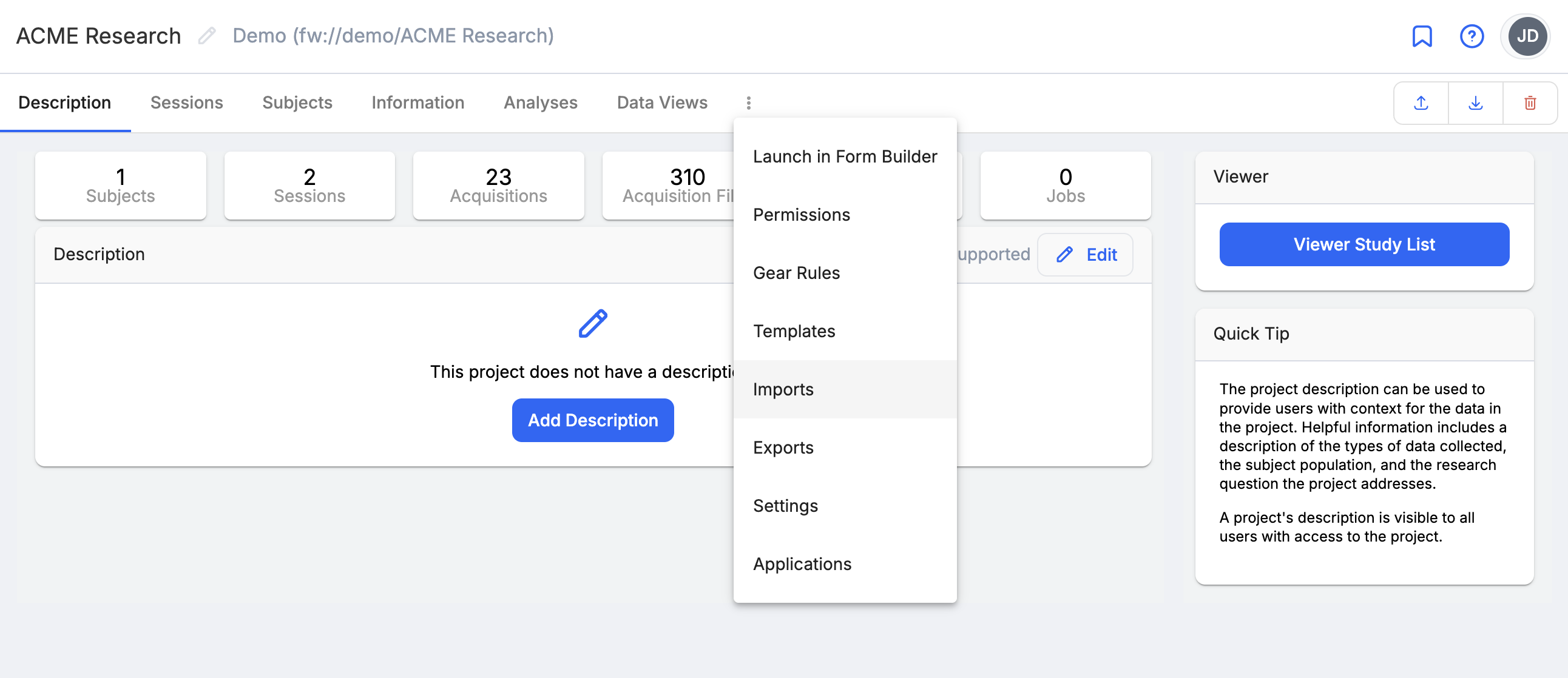
Navigate to the "Imports" tab of the destination Project (in the overflow menu).
-
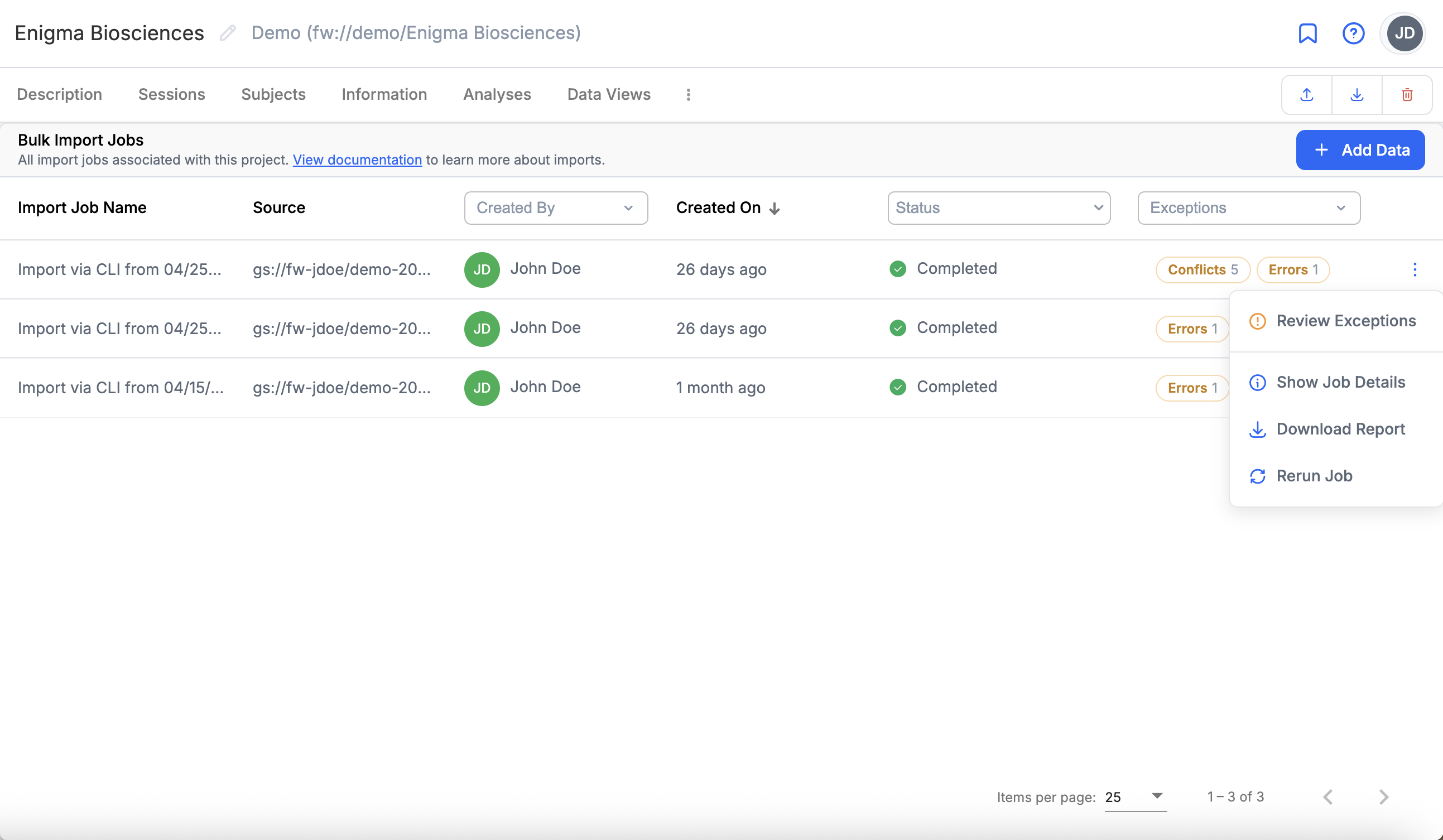
Locate the import job you want to rerun in the list.
-
Click the overflow menu (three dots) on the import job line.
-
Select "Rerun Job" from the menu.
- Confirm the action in the dialog that appears.
A new import job will be created and started immediately with the same settings and source data location as the original import job. The new import job will appear as a separate entry in the Imports list.
Limitations
Local Uploads - Data Availability
For imports that were initiated by uploading data from "My Computer", the "Rerun Job" option is only available while the uploaded data remains in temporary staging storage.
The "Rerun Job" option is available for 4 weeks after the import is created. After that, the uploaded data expires and is removed from staging storage, and the "Rerun Job" option will be disabled.
In this case, you will need to restart the import process by re-uploading the source data from your local machine.
CLI-Initiated Local Uploads
For imports that were started using the Flywheel CLI with local file uploads, the import begins while files are still uploading to optimize the experience.
Once such an import has finished, it can be rerun from the Web App in the same way as any other local upload, while the uploaded data remains in staging storage.
To resume an interrupted upload for an import that has not finished, use flyw import run --resume-local <import-id> on the machine where the original upload was started.
External Storage Imports
For imports from external storage, the "Rerun Job" option is available as long as:
- The external storage registration still exists in Flywheel
- The source data files are still present at the original storage location
- You have appropriate permissions to access the external storage
Common Use Cases
Fixing Configuration Errors
If an import completed but used incorrect mapping rules or settings, you can:
- Cancel or wait for the original import to complete
- Adjust the import configuration if needed
- Use "Rerun Job" to start a fresh import with corrected settings
Recovering from Failures
If an import job fails due to:
- Temporary network issues
- Service interruptions
- Storage access problems
You can use "Rerun Job" after resolving the underlying issue to retry the import without needing to reconfigure everything.
Importing Updated Data
If the source data has been updated or corrected at the external storage location, you can use "Rerun Job" to import the latest version of the data.
Note
For local uploads, the "Rerun Job" option uses the originally uploaded data, not new data. To import updated local data, you must start a new upload and import.